
Supacash allows you to set aside money for specific needs, such as airtime, by locking it into a dedicated wallet. This helps you manage your budget and ensures those funds are reserved for their intended purpose.
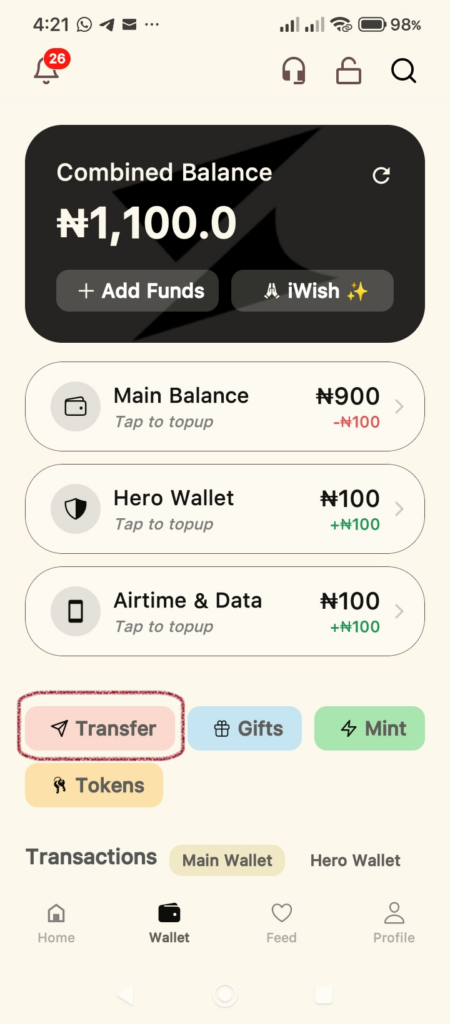
Step 1: Open the Transfer Menu
Start at your Wallet dashboard. Locate and tap the Transfer button, found among the action icons below your balance.
Step 2: Select the Lock Funds Option
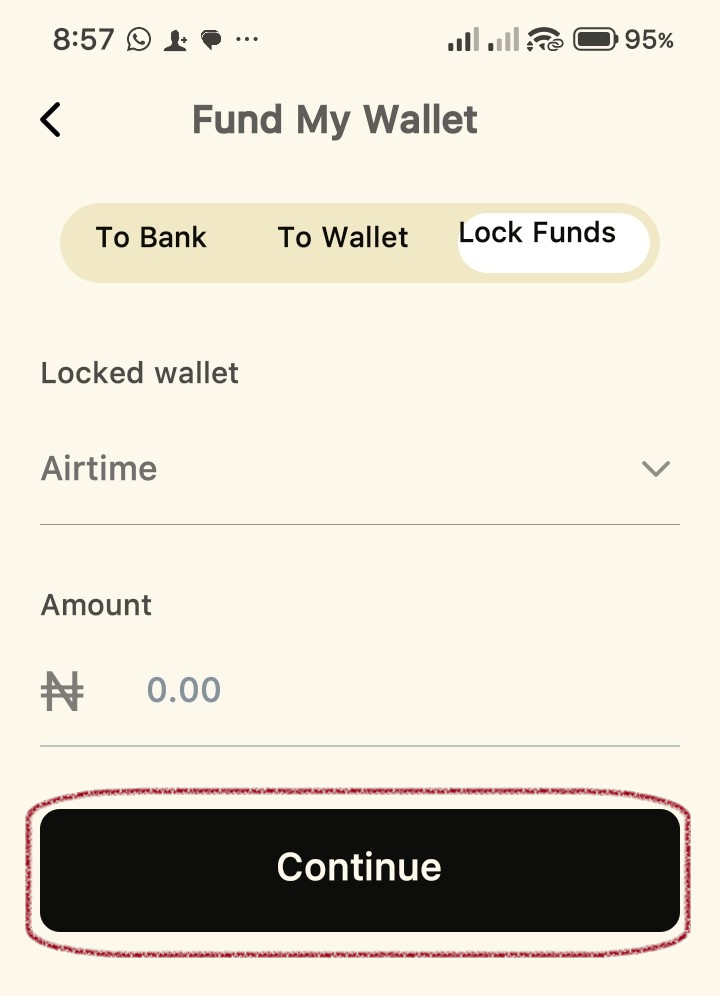
On the Fund My Wallet screen, you will see three tabs at the top. Tap on Lock Funds to begin the process of moving money into a restricted wallet.
Step 3: Choose Your Wallet and Amount
Once you are in the Lock Funds section:
- Select Wallet: Use the dropdown menu under Locked wallet to choose your destination.
- Enter Amount: Type in the Amount you wish to lock away.
- Continue: Tap the black Continue button.
Step 4: Review and Confirm
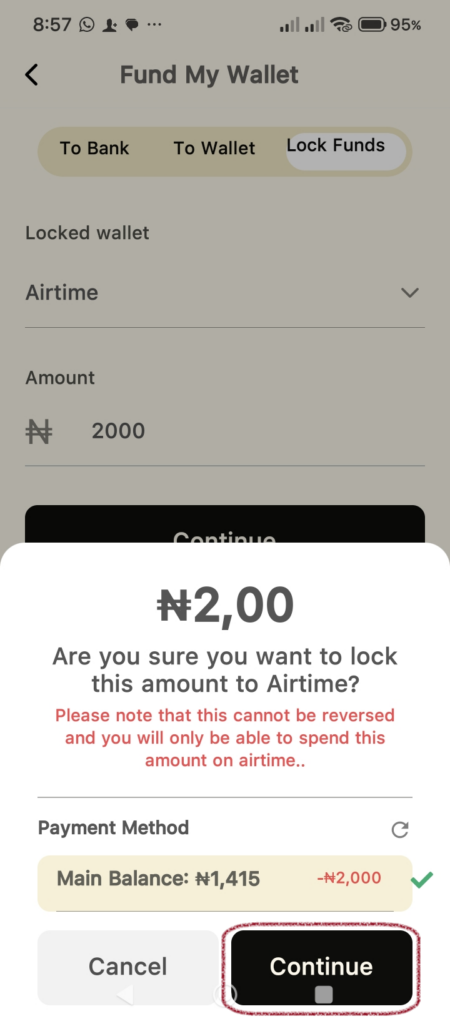
A confirmation window will appear.
- Check the Details: Carefully review the amount and the target wallet.
- Important Note: The app will remind you that this action cannot be reversed, and the funds can only be spent on the chosen service.
- Payment Method: Verify that your Main Balance is selected as the source.
- Proceed: Tap Continue.
Step 5: Authorize with Your PIN
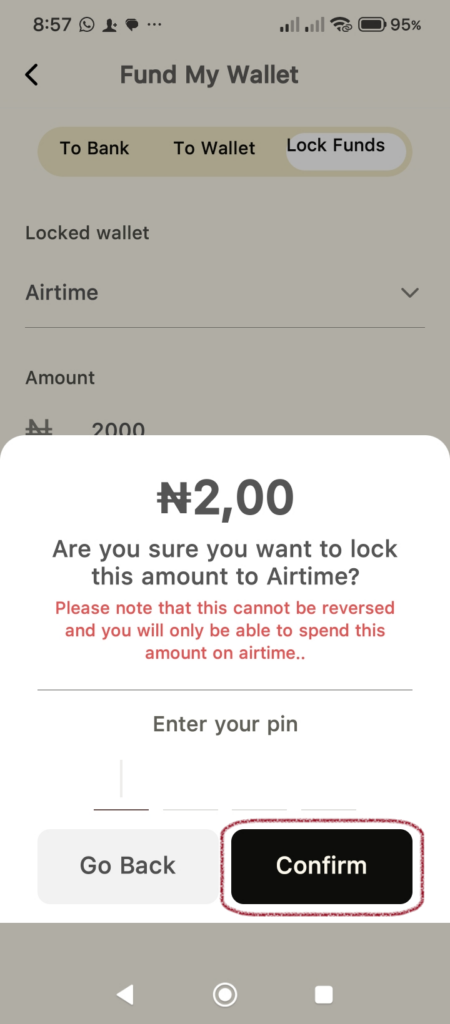
For your security, you must authorize the transfer:
- Enter your secret 4-digit PIN.
- Tap Confirm.
Step 6: Transaction Complete
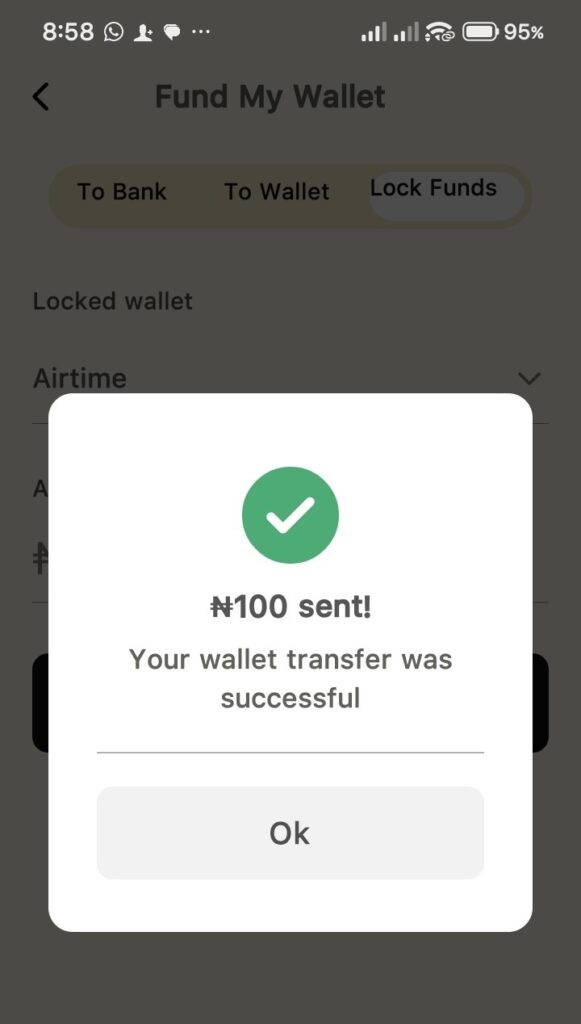
A success message will pop up stating your wallet transfer was successful. Tap Ok to return to your main wallet screen.
Note: Remember that once funds are locked into a specific category, they are no longer available in your Main Balance for other types of transactions.