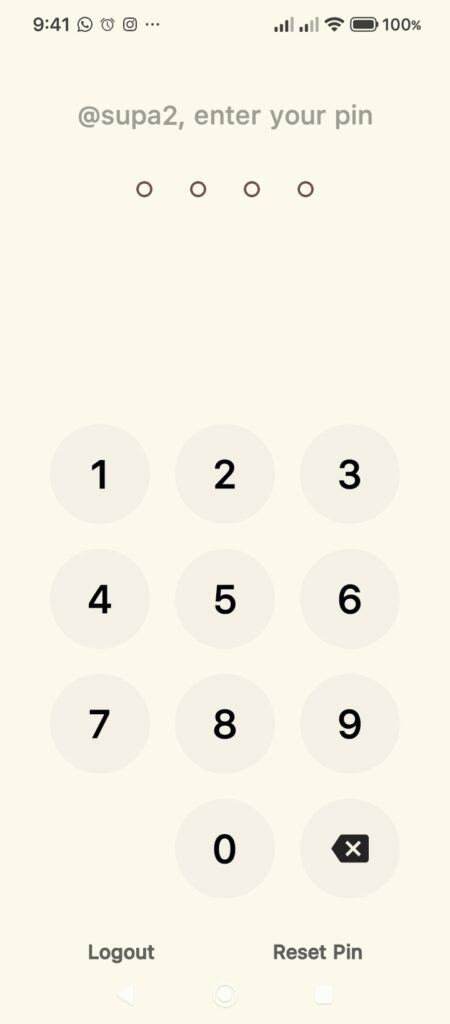
A Transaction PIN adds an extra layer of security to your account, ensuring that only you can authorize transfers and giveaways. Follow this simple guide to set yours up in less than a minute.
Step 1: Access Your Profile
Open the Supacash app and tap the Profile icon located at the bottom right corner of the navigation bar.

Step 2: Open Settings
On your profile page, look for the Settings button (next to the Share button) and tap it to view your account options.

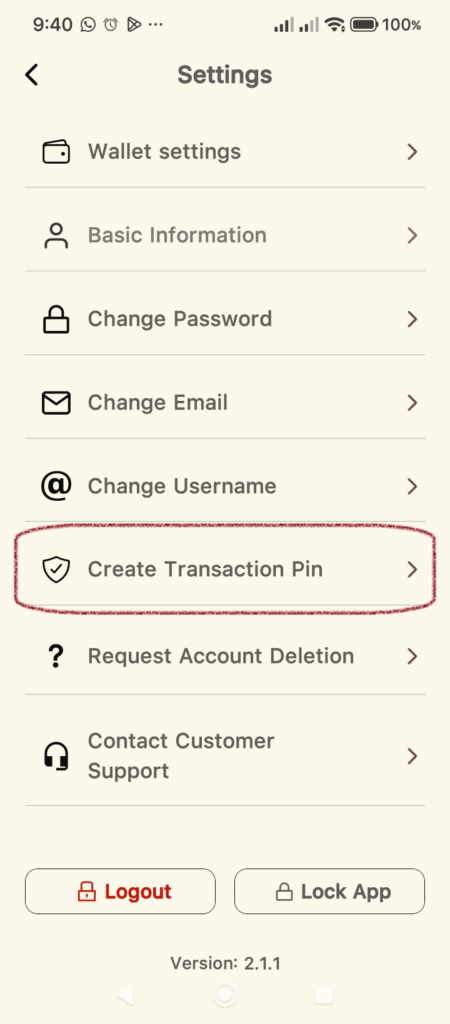
Step 3: Select Create Transaction Pin
In the Settings menu, scroll down until you see the option labeled Create Transaction Pin. Tap this to begin the setup.
Step 4: Enter Your Security Details
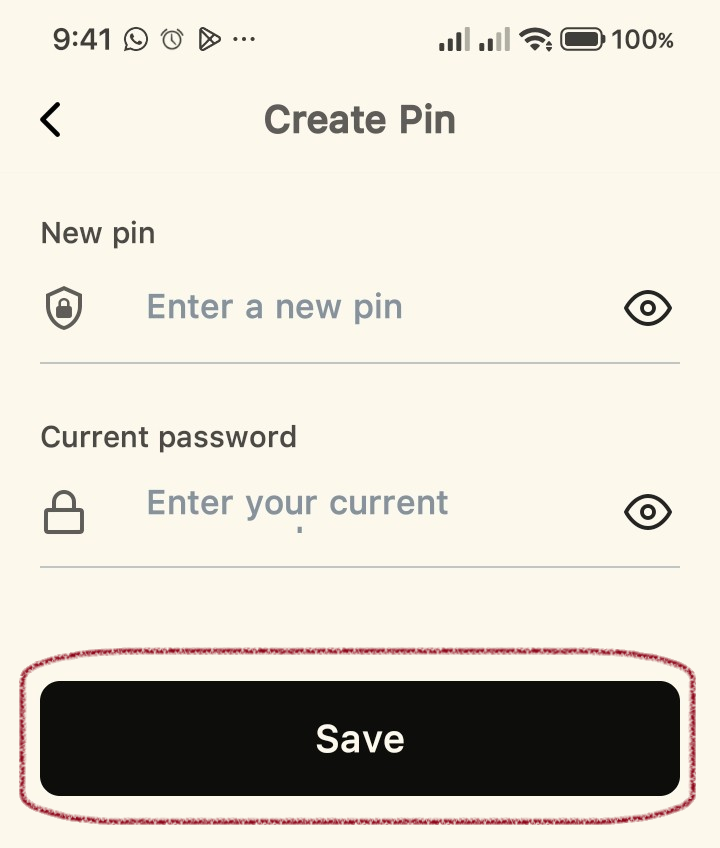
On the Create Pin screen, you will need to fill in two fields:
- New pin: Enter the 4-digit PIN you wish to use for your transactions.
- Current password: Enter the login password you currently use to access your Supacash account. This confirms it’s really you.
Tip: Choose a PIN that is easy for you to remember but hard for others to guess (avoid simple sequences like 1234).
Step 5: Save Your PIN
Once you have entered both your new PIN and your password, tap the Save button at the bottom of the screen.
Step 6: Verify and Confirm
After saving, the app will prompt you to enter your new PIN to confirm it. Simply type in the digits you just created, and your Transaction PIN will be officially activated.