
Shared group wallets make it incredibly easy to pool funds, track collective expenses, and manage money together with friends, family, or teammates. Whether you are planning a trip, organizing household bills, or contributing to a team lunch, every transaction is completely transparent to all members.
Creating Your Group Wallet
Step 1: Access the Groups Section
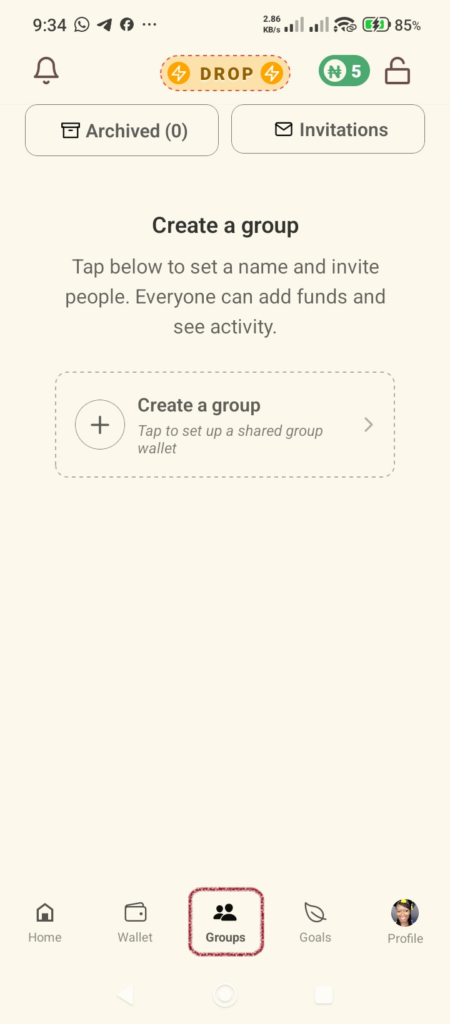
- Open your Supacash app and look at the bottom navigation menu.
- Tap the Groups icon to open the main group setup screen.
Step 2: Initiate Group Creation
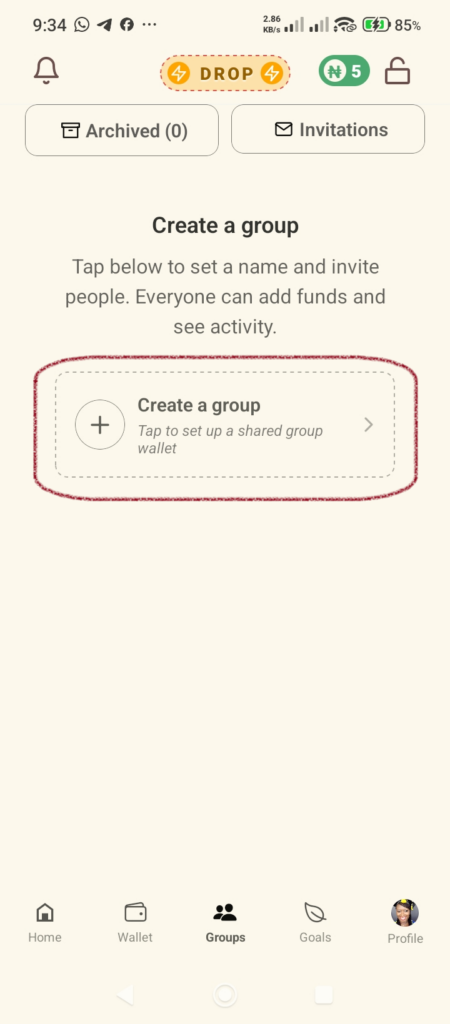
- On the main screen, you will see a prominent card that says Create a group with a subtitle underneath: “Tap to set up a shared group wallet.”
Step 3: Fill in Group Details
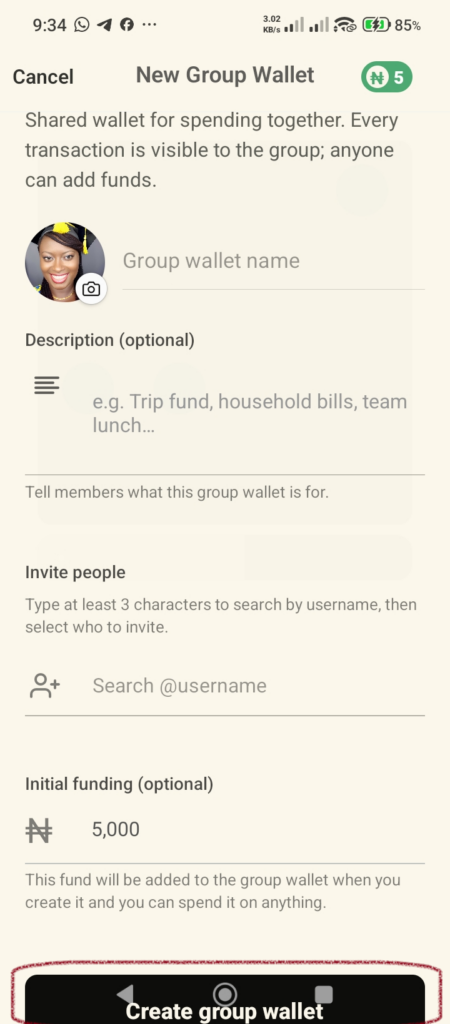
You will be directed to the New Group Wallet creation form. Fill in the following details:
- Group Wallet Name: Enter a clear, identifiable name for your wallet.
- Description (Optional): Add a brief note so your members know exactly what the shared funds will be used for.
- Invite People: Start typing a friend’s username. You need to type at least 3 characters to search by username, then select the person you want to invite.
- Initial Funding (Optional): If you want to kickstart the wallet with funds immediately, enter an initial amount (e.g., ₦5,000).
Once you have filled out these sections, tap the large Create group wallet button at the bottom of the screen.
Step 4: Confirm Payment & Funding
- A review drawer will slide up displaying your chosen initial funding amount.
- Select your preferred Payment Method (your Main Balance will be checked by default).
- Tap Continue to move forward.
Step 5: Securely Complete Creation
- To finalize the creation of your group wallet, securely enter your transaction PIN on the keypad screen.
- Tap Confirm. Your group wallet is now active, funded, and invitations have been dispatched.
Managing Your Groups & Invitations
Managing your ongoing shared wallets and incoming requests is entirely centralized right from the top of the Groups home screen.
Checking Group Invitations
- When someone invites you to join their shared wallet, you can view it by tapping the Invitations button at the top right of the main group screen.
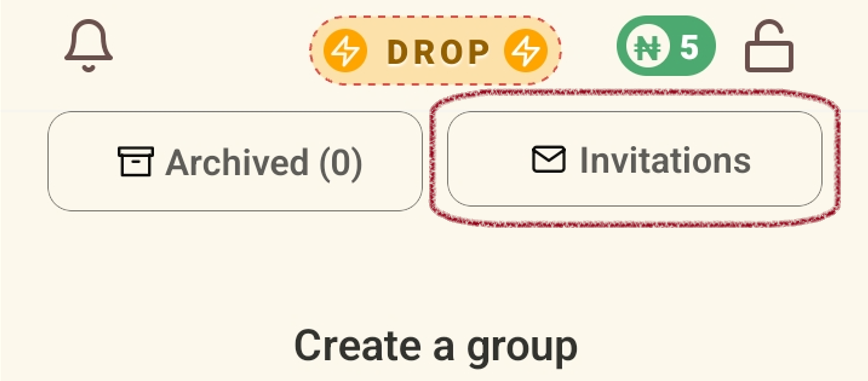
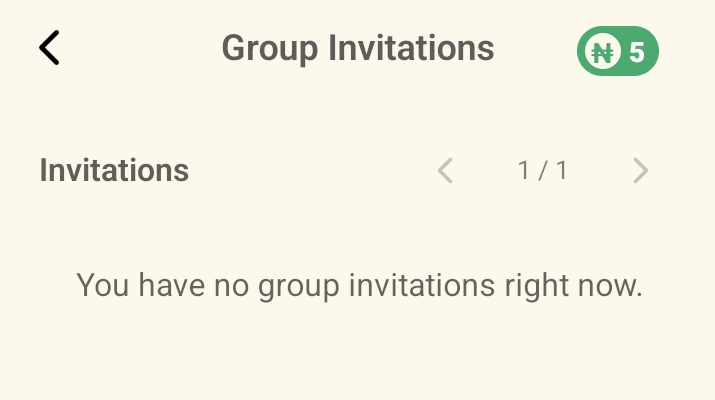
- If you have no pending requests, you will see a clean page stating “You have no group invitations right now”. When you do have invites, you can toggle through them here to accept or decline.
Organizing with Archived Groups
- To keep your main group tab clean and focused, you can move older or completed group wallets into an archive.
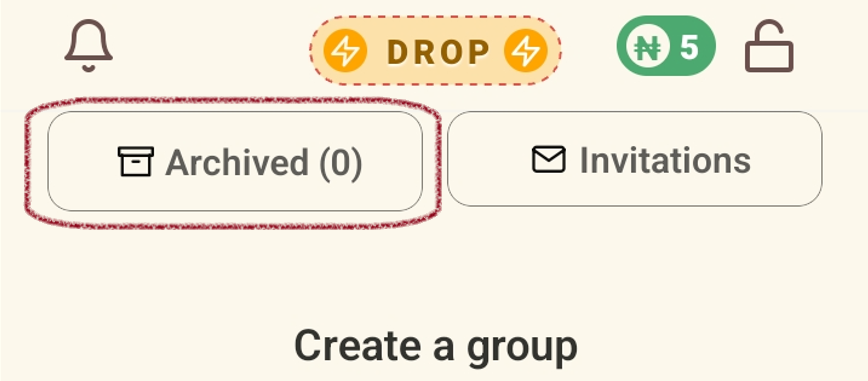
- Tap the Archived button at the top left of the main group screen to access your hidden list.
- Archived groups function exactly like normal groups—members can still add funds, receive invitations, and use the wallet dynamically, but they stay neatly tucked away for better organization.
Quick Tip: Remember that in a Supacash Shared Group Wallet, transparency is key. Every single transaction made out of the fund is visible to all invited members in real-time. Happy saving and spending together.