Claiming a giveaway is a seamless experience designed to reward you, whether you are a regular user or a first-time guest. If you are a logged-in member, you can instantly claim funds directly to your Supacash wallet. For those who don’t have an account yet, the app allows you to claim giveaways as a guest and have the funds sent straight to your Bank account.
How to Claim a Giveaway to Your Supacash Wallet
As a logged-in Supacash user, you can claim funds instantly to your Supacash wallet for future use or transfer. To claim a giveaway to your Supacash wallet, you must be logged in to the Supacash app.
Step 1: Access the Giveaway
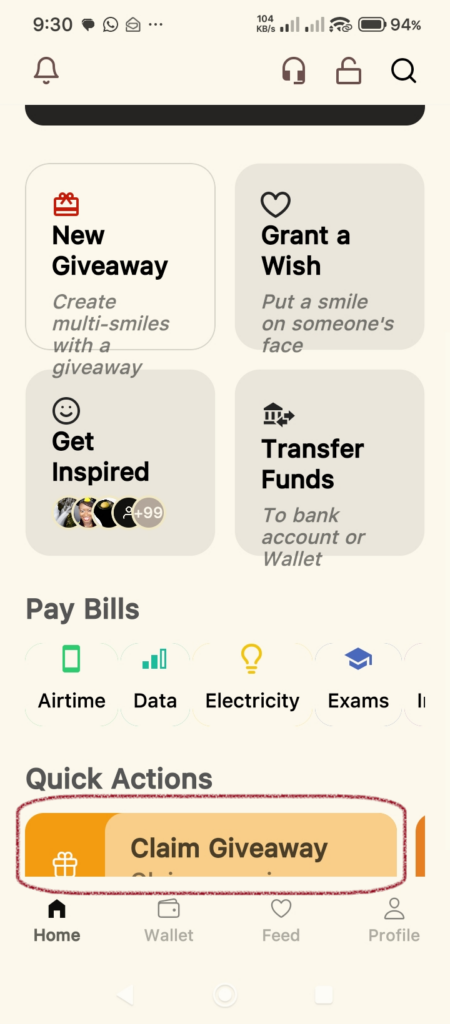
- Navigate to your Home dashboard, tap the Claim Giveaway button under the Quick Actions section.
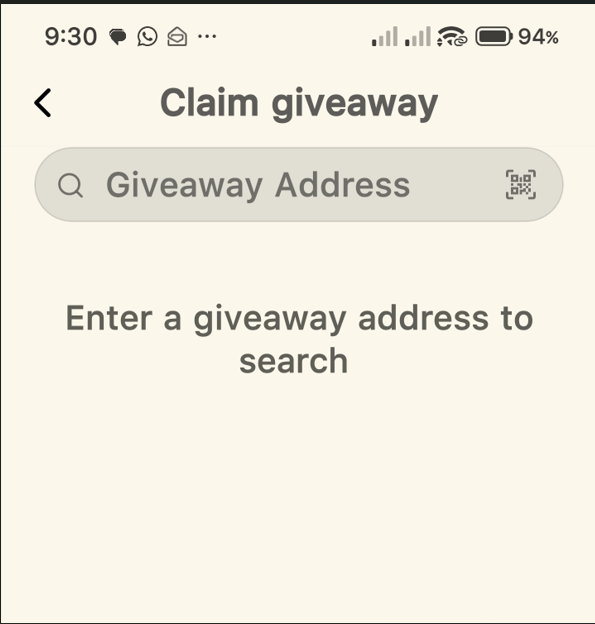
- Use the search bar at the top of the Claim giveaway screen to enter the specific Giveaway address (e.g., 1495-3353-1069).
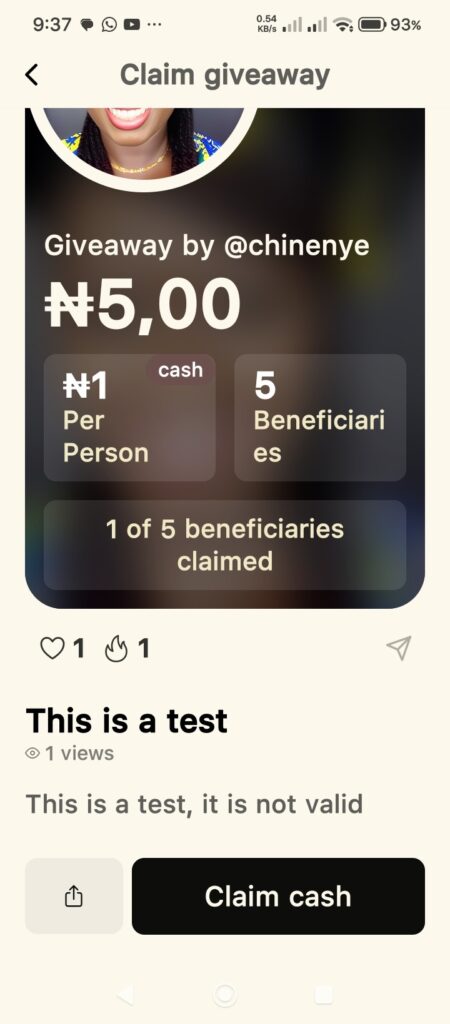
- The Giveway that matches the search criteria is displayed.
- You can also navigate to your Feed on the Home dashboard to view the giveaways created by other Supacash users.
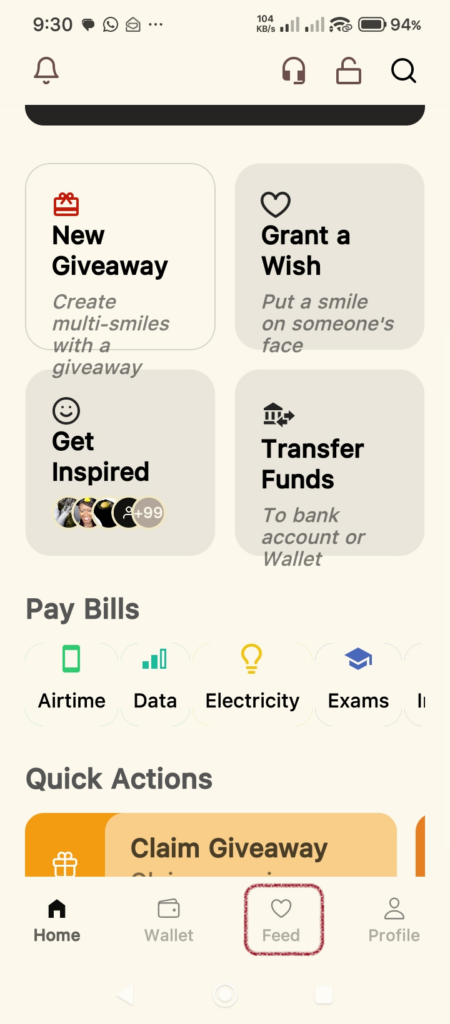
- Tap to select a Giveaway from your Feed screen.
- Review Details: Check the total amount, how many beneficiaries have already claimed, and the Amount per person.
Step 2: Initiate the Claim
- Tap the Claim cash button located at the bottom of the giveaway post.
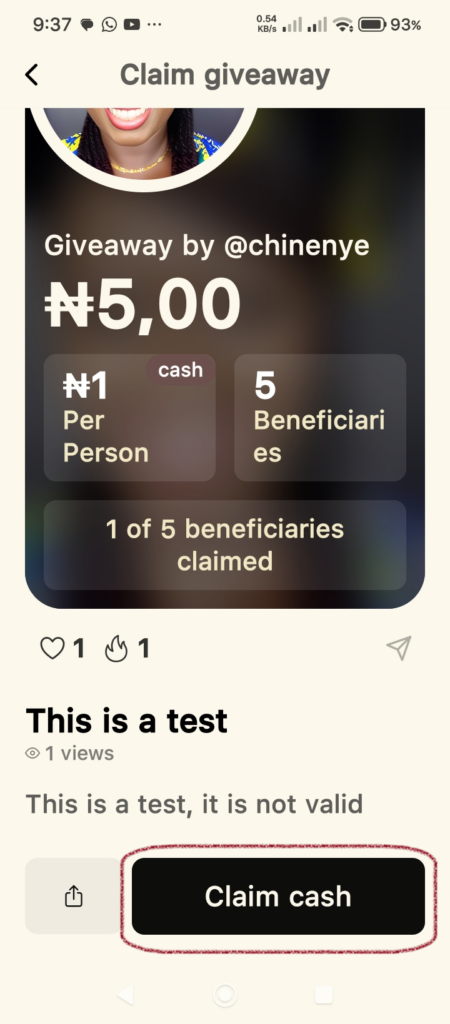
Step 3: Handle Access Requirements
Depending on how the Giver sets up the giveaway, you will encounter one of two scenarios:
- Scenario A (No Access Code): If the giveaway is public, the app will skip the code entry and proceed to the final confirmation (Step 4).
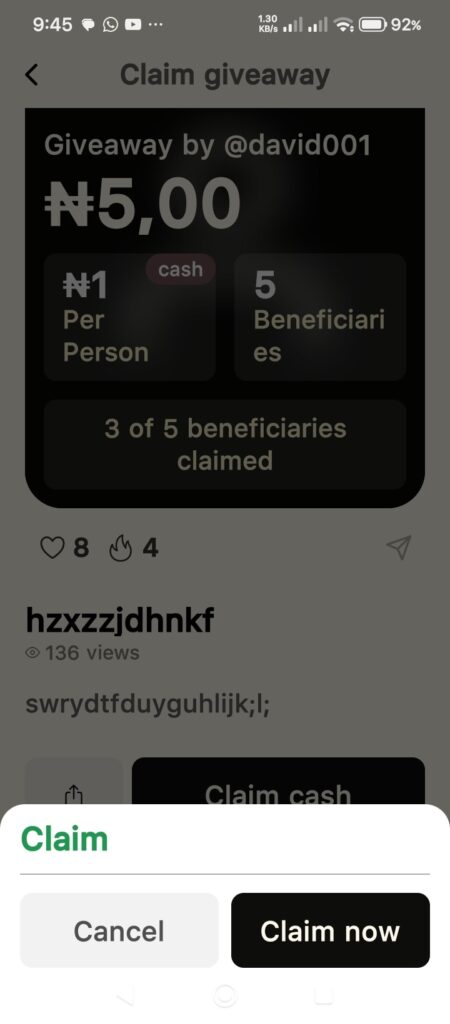
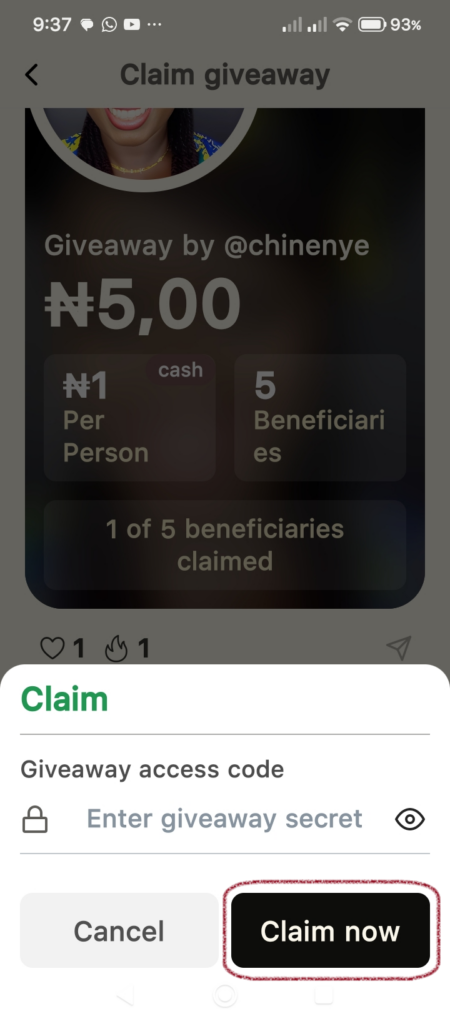
- Scenario B (Private Access Code): If a lock icon appears with the text “Giveaway access code,” you must type in the specific access code provided to you by the Giver.
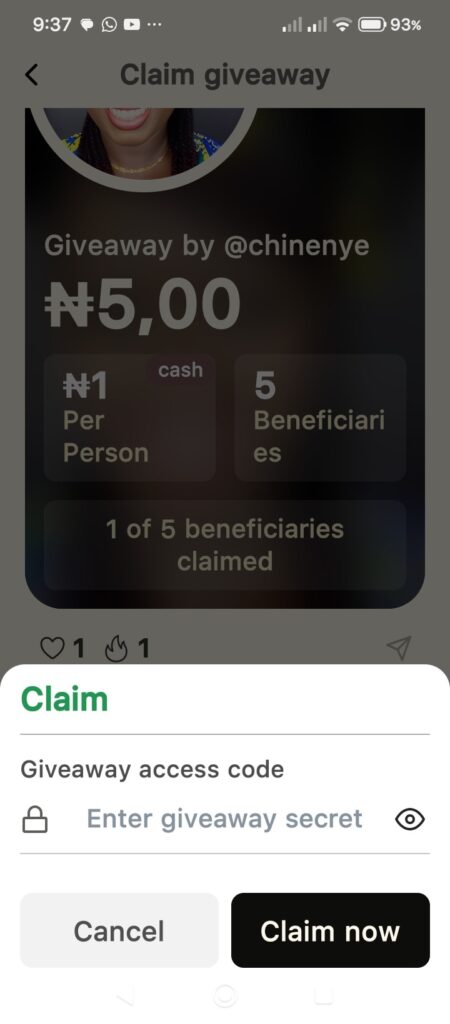
Step 4: Confirm and Finish
- Tap the Claim now button.
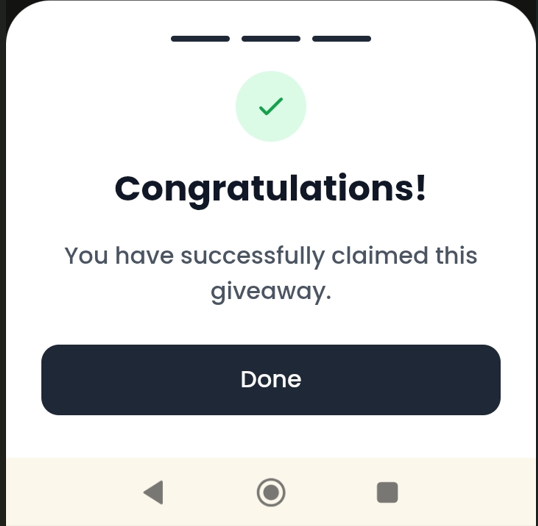
- A Congratulations message will appear, confirming that you have successfully claimed the giveaway.
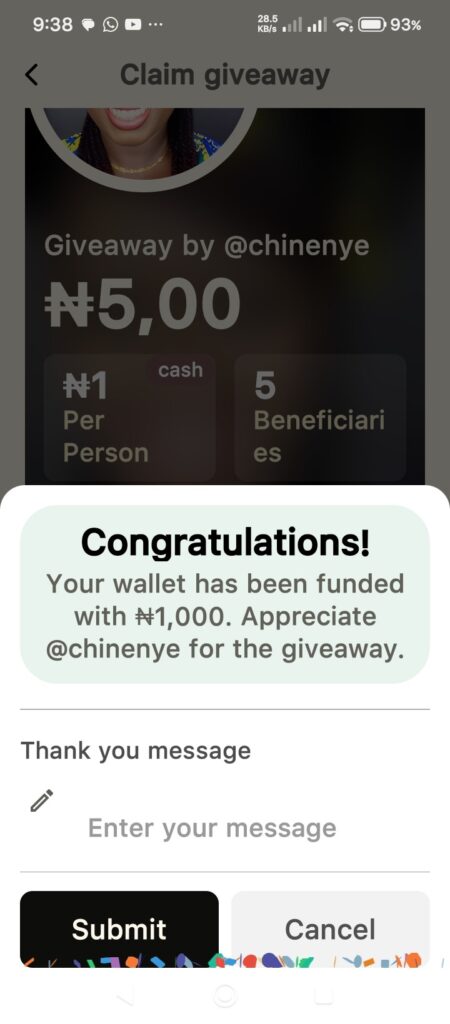
- A Thank you message (optional) field is displayed for you to enter a message to appreciate the Giver.
- Enter your message and tap the Submit button.
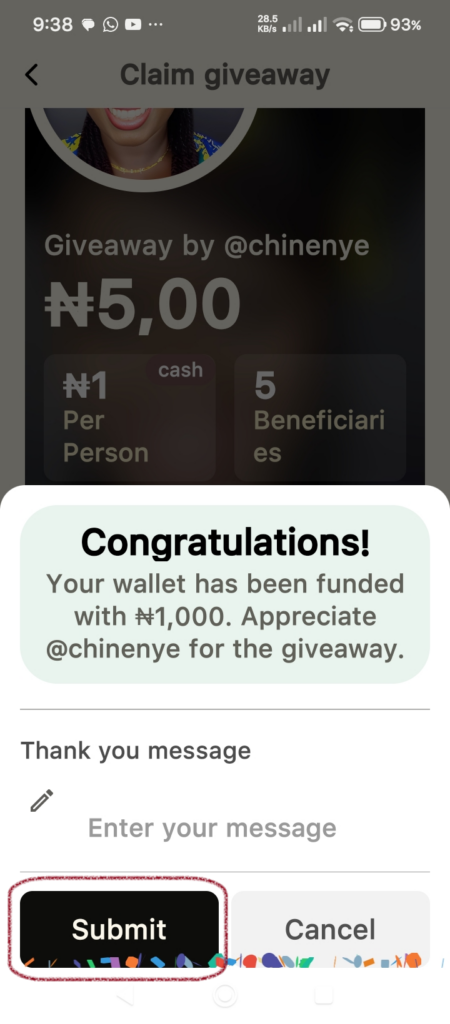
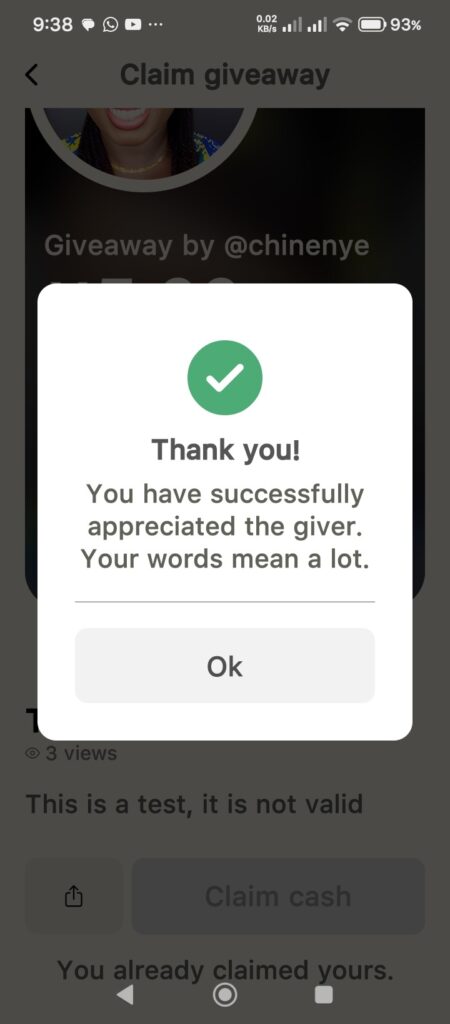
- Once submitted successfully, a Thank you screen is displayed.
N.B.: If the giveaway was created to be restricted to a utility/lock funds wallet, the funds claimed will be credited to the corresponding utility/lock funds wallet. For example, if the giveaway is restricted to Airtime, when claimed, the giveaway funds will be credited to your Airtime Wallet and you can spend the funds only on Airtime purchases.
How to Claim a Giveaway to Your Bank Account as a Guest User on The Supacash App
If you have the Supacash app installed onyour mobile device, you can claim a giveaway to your bank account from the app without creating an account or logging in. Follow these simple steps to successfully claim your funds to your bank account via the Supacash app:
Step 1: Open the Giveaway Link
- Access the Link: Click the unique giveaway URL provided by the Giver.
- This will open the Giveaway details on the Supacash app if you have the app installed on your device.
- Review the Offer: Check the Total Amount, the Amount Per Person, and the number of Beneficiaries remaining to ensure the giveaway is still active.
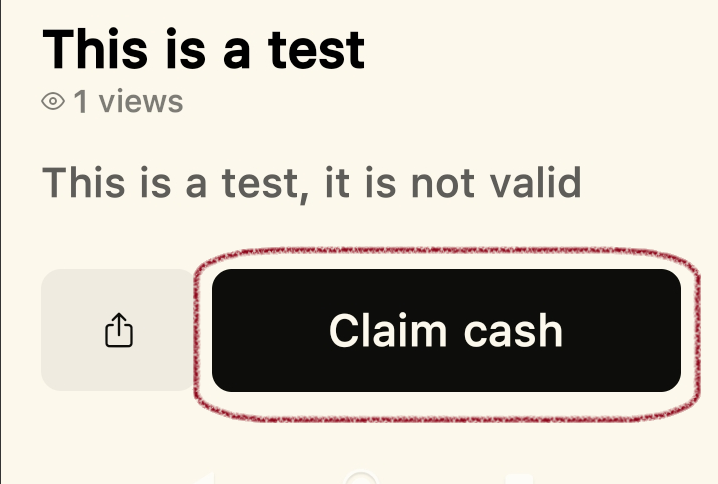
- Start the Claim: Tap the black Claim cash button at the bottom of the page.
Step 2: Enter Personal Identification
- Select Destination: Ensure the toggle at the top of the prompt is set to To Bank Account.
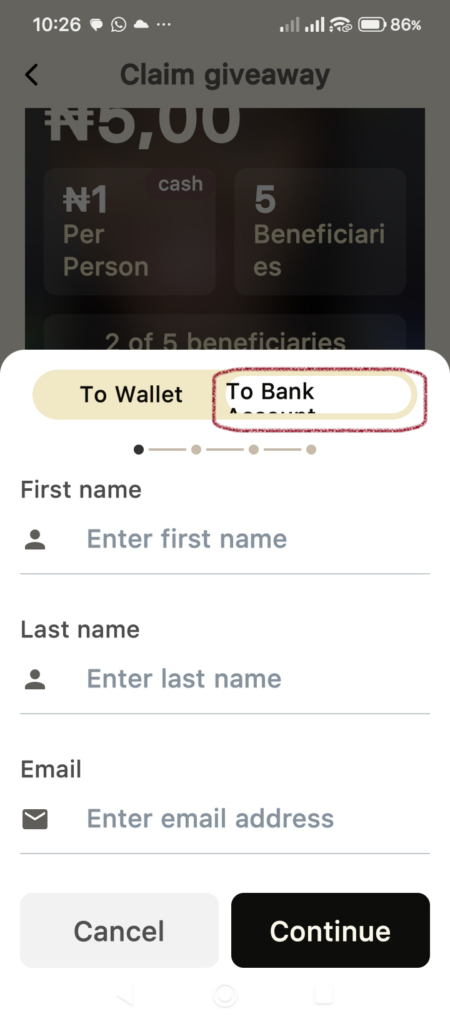
- Provide Details: Enter your First Name, Last Name, and a valid Email Address.
- Tap Continue to proceed to the next section.
Step 3: Provide Banking Information
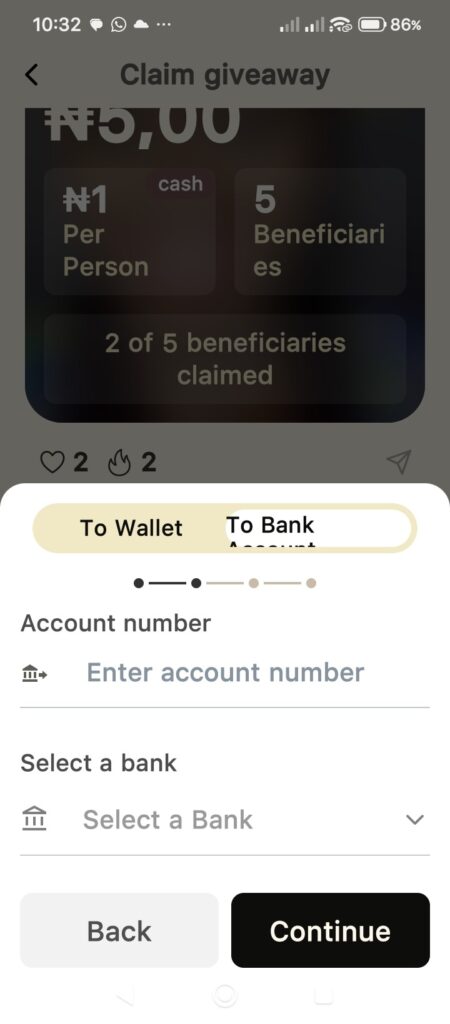
- Account Details: Enter your Account Number in the designated field.
- Select Institution: Tap Select a Bank and choose your financial institution from the dropdown list.
- Continue: Tap Next.
Step 4: Verify and Secure the Claim
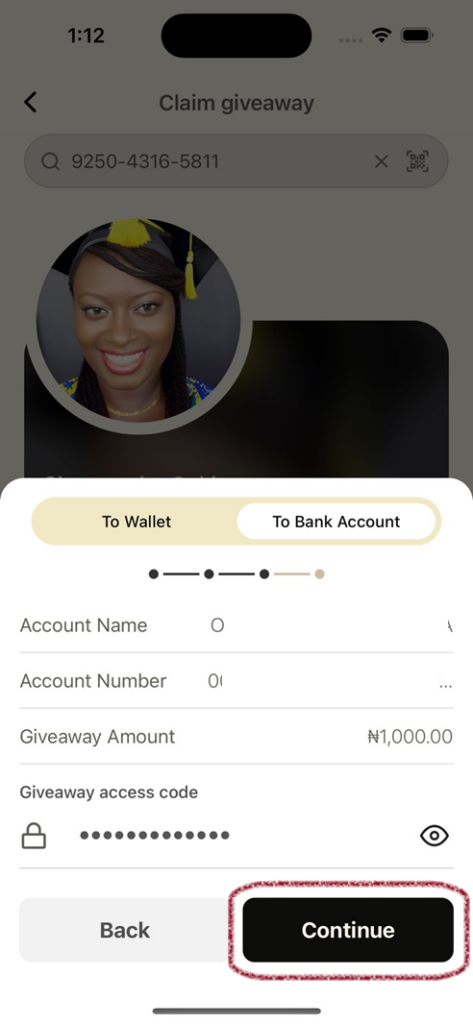
- Verify Account: The system will automatically fetch and display your Account Name; double-check that this matches your bank records.
- Enter Access Code: If the giveaway is set to Private, you must enter the specific Access code provided by the Giver to unlock the funds.
- Finalize: Once the details are verified, tap the Continue button.
Step 5: Completion
- Success Confirmation: A Congratulations! message will appear on your screen, confirming the claim was successful.
- Finish: Tap Done to close the process.